To use VetHelpDirect video, you need to give access to your camera and microphone in your Safari browser.
Note
- This setting only gives access during your call to your Veterinary Clinic, not at any other time
- Currently, Apple doesn't fully support video calls in other browsers, please use Safari only
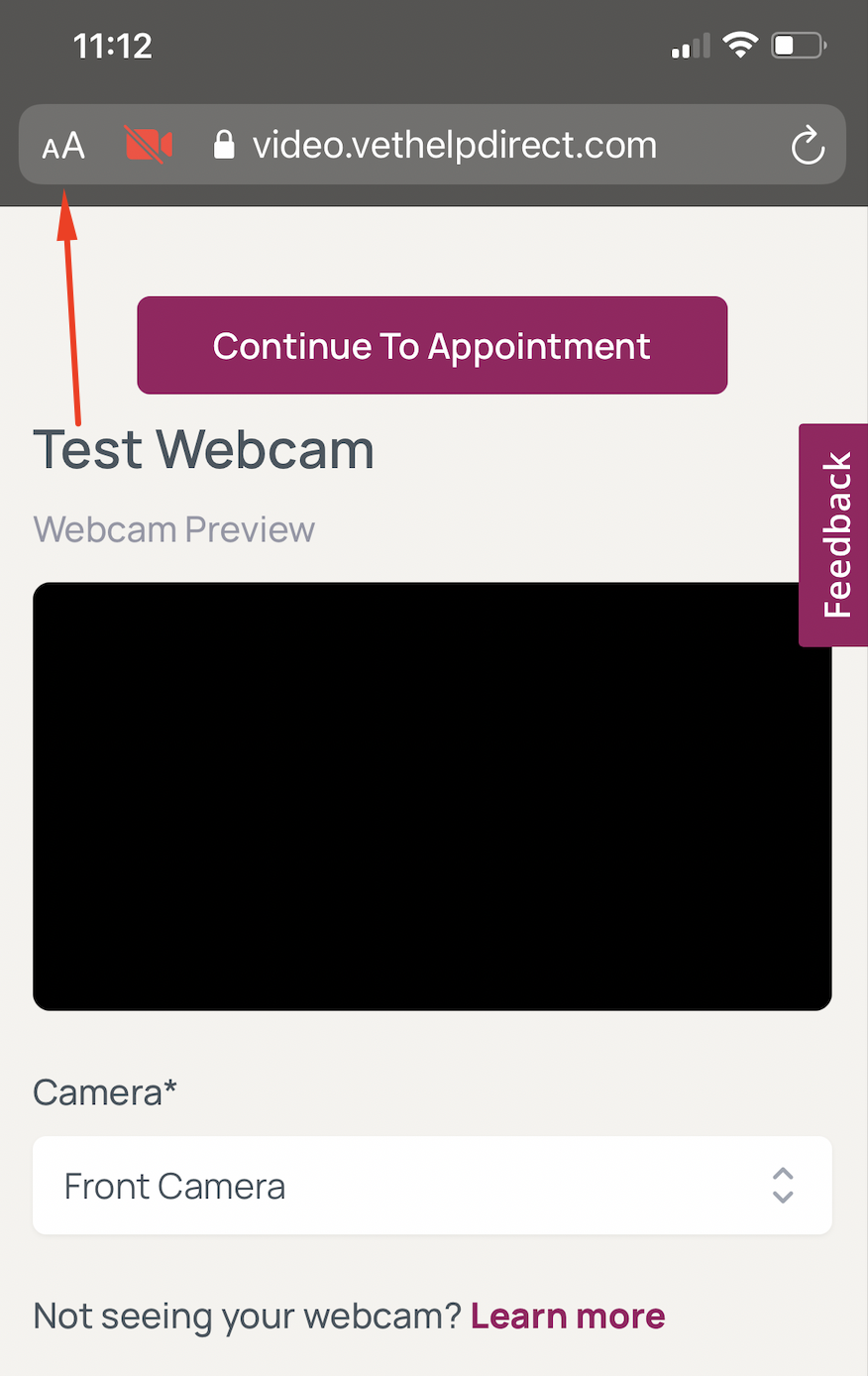
1. In Safari, click the 'aA' button in the top left-hand corner of the screen.
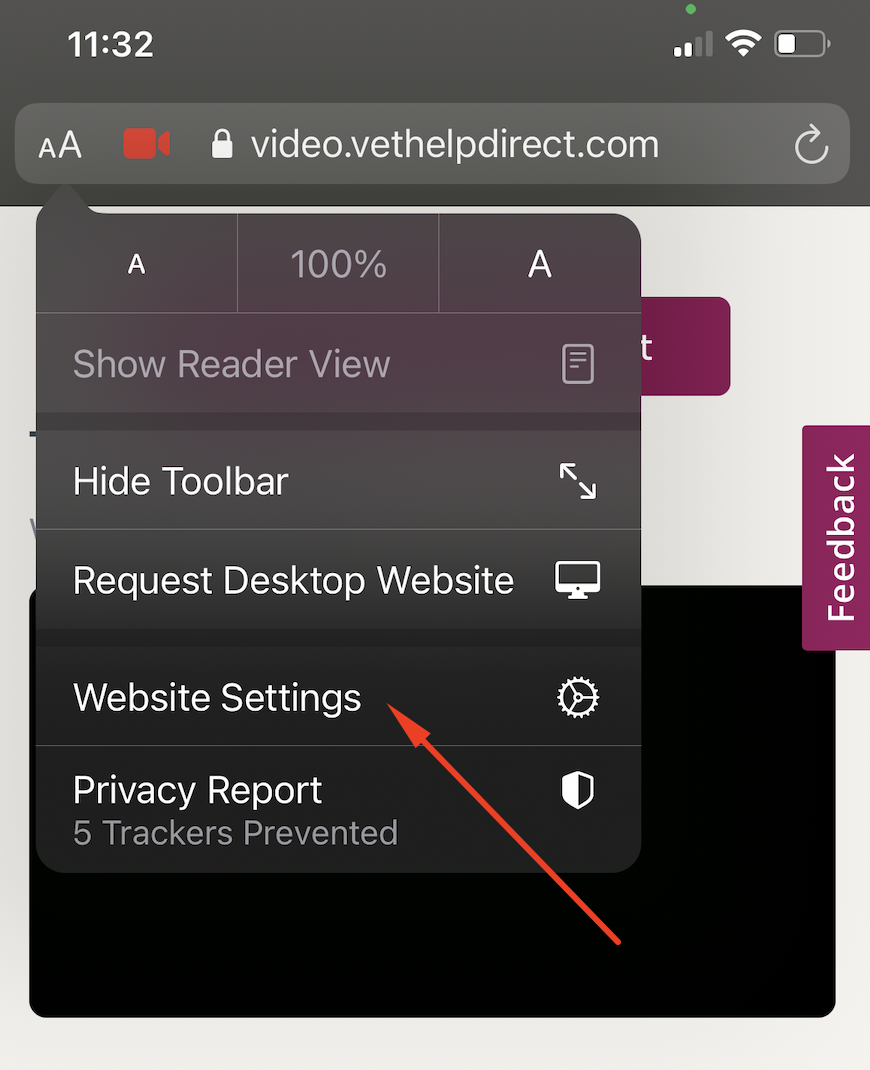
2. Tap 'Website Settings' from the drop-down menu
3. Change the camera permission from 'ask' to 'allow' by tapping 'Camera' then 'Allow'
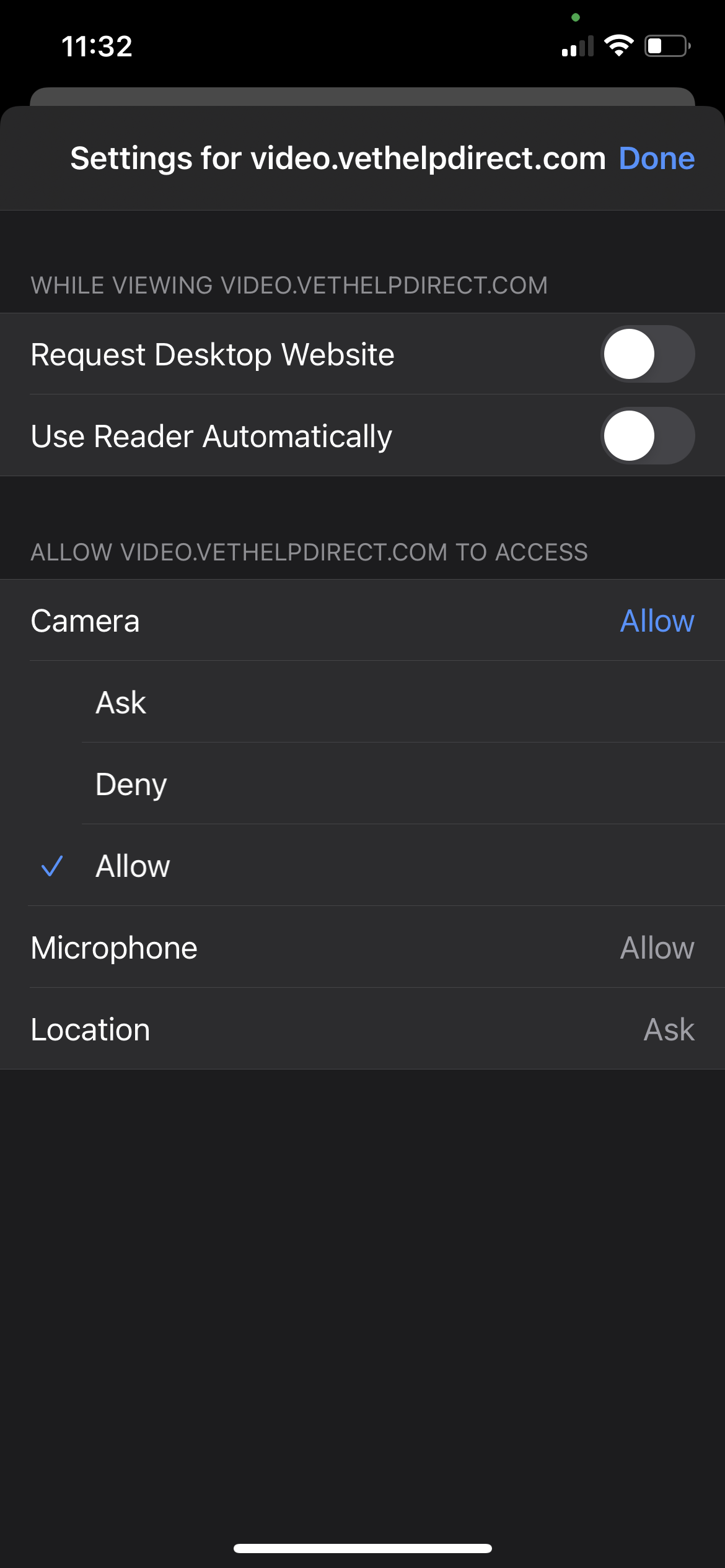
4. Change the microphone permission from 'ask' to 'allow' by tapping 'Microphone' then 'Allow'
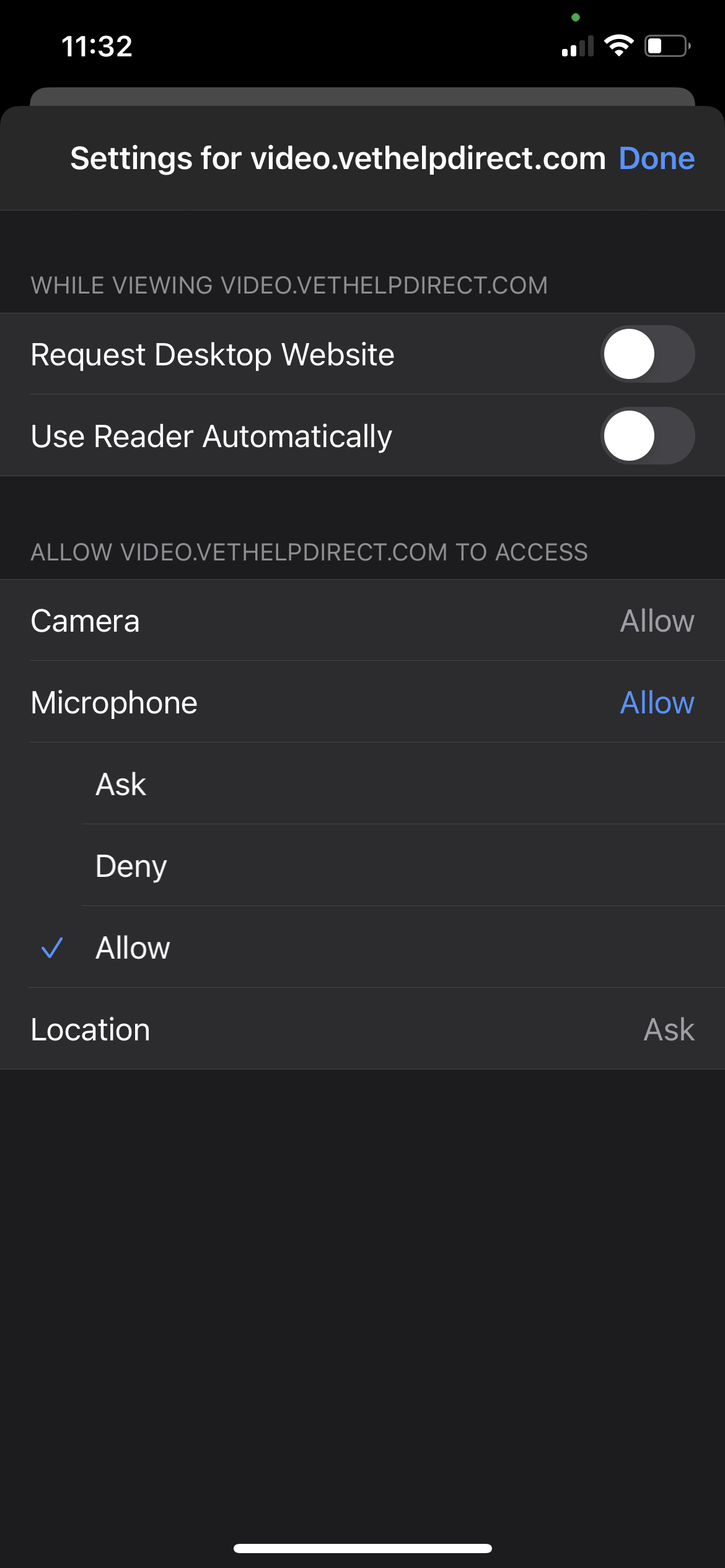
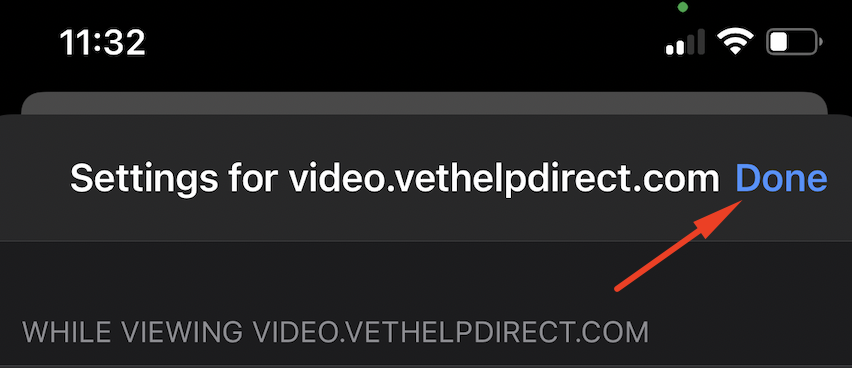
5. Tap 'Done' to save these settings
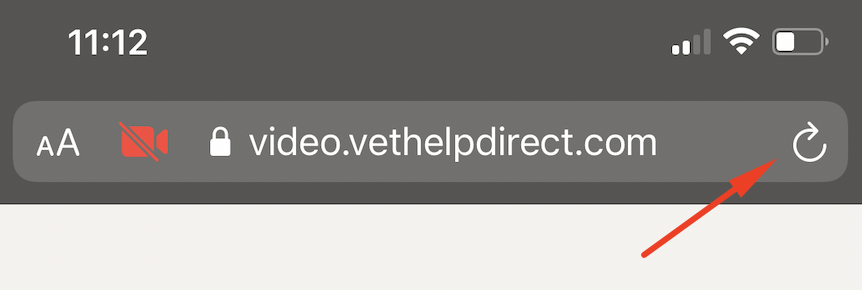
6. Now refresh your Safari browser by tapping the curly arrow top right
7. If you were trying to get into a call, you should now be back on the video test screen - ignore this and tap 'Continue to Appointment'